Sending forms automatically
Instead of remembering to send a pre-consultation form by hand every time, set up a rule once and let it happen automatically.
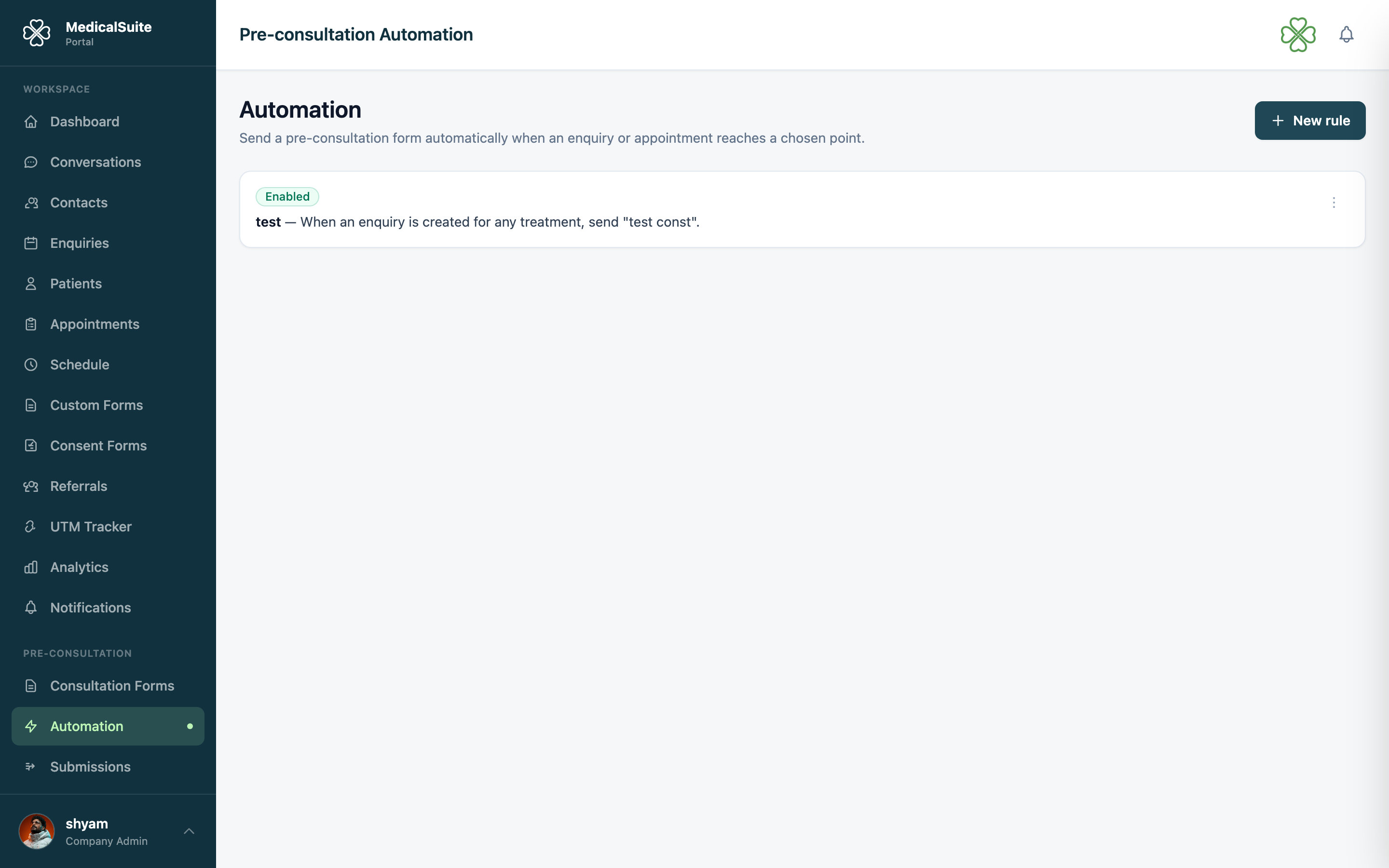
What a rule is: "When this happens, send this form." Rules live under Pre-consultation → Automation.
The four moments a form can be sent
A rule fires at one of these moments:
- A new enquiry arrives — as soon as it's created.
- An enquiry's status changes — to a status you choose (e.g. when it becomes "Qualified").
- An appointment is booked — as soon as it's created.
- An appointment's status changes — to a status you choose (e.g. when it becomes "Confirmed").
For the two "status changes" moments, pick the exact status that should trigger the send.
Narrowing who a rule applies to
Each rule can optionally be limited by:
- Treatment
- Doctor
- Location
- Patient type — new patient or existing patient
- Gender — Male, Female, Other. You can pick more than one, so a single rule can cover, say, both Male and Female.
If you leave Treatment, Doctor, Location, Patient type, or Gender blank on a rule, that rule applies to every treatment, every doctor, every location, every patient type, or every gender. Blank does not mean "nobody" — it means "no restriction."
A rule with everything left blank will send its form to every single enquiry or appointment that matches the chosen moment. If you only meant to target one treatment, make sure you actually pick it — an empty field is not a safe default.
One exception worth knowing: if a rule is limited to one or more genders, it will not be sent to someone who didn't tell you their gender. If a patient didn't say, they won't get it — even though the field itself wasn't left blank. If a form seems to be skipping certain enquiries or appointments for no obvious reason, check whether the patient's gender was left unrecorded.
The Automation page shows a plain-language summary of each rule (e.g. "When an enquiry is created for Dental Implants, send 'Pre-visit questions'.") so you can check exactly who it will reach before saving.
Who gets told when a form comes back
When a patient completes a form, you can choose to notify:
- The doctor on the appointment or enquiry.
- The staff member handling it.
- The clinic — the general recipients set up in Email Notifications.
These are three independent checkboxes on the rule — turn on as many as make sense. The notification email never includes the patient's answers, only a link into the portal to view them.
Chasing unfilled forms and expiry
If a patient hasn't filled in the form yet, you can have the system chase them automatically:
- Chase after X days — turn this on and set how many days to wait before the first reminder.
- Up to Y times — a maximum number of reminders, spaced out by the same number of days.
You can also set an expiry — after a set number of days, the link in the email stops working and the request shows as expired instead of pending. This keeps old, unanswered links from being usable indefinitely.
Sending a form without a rule
Rules are for the common cases. For a one-off, staff can still send a form to a specific patient by hand — see Reviewing patient answers for the Send form button.
Common questions
Two rules both point at the same form for the same enquiry — does the patient get two emails? No — the patient only ever gets sent that form once for the same enquiry or appointment, even if more than one rule matches.
Can I turn a rule off without deleting it? Yes — use Disable on the rule's row. It stays configured, ready to switch back on later.
Pre-consultation missing from the menu? It's switched on per clinic — ask your administrator.