Using the calendar
The Appointments page is your clinic's diary. Everything bookable lives here.
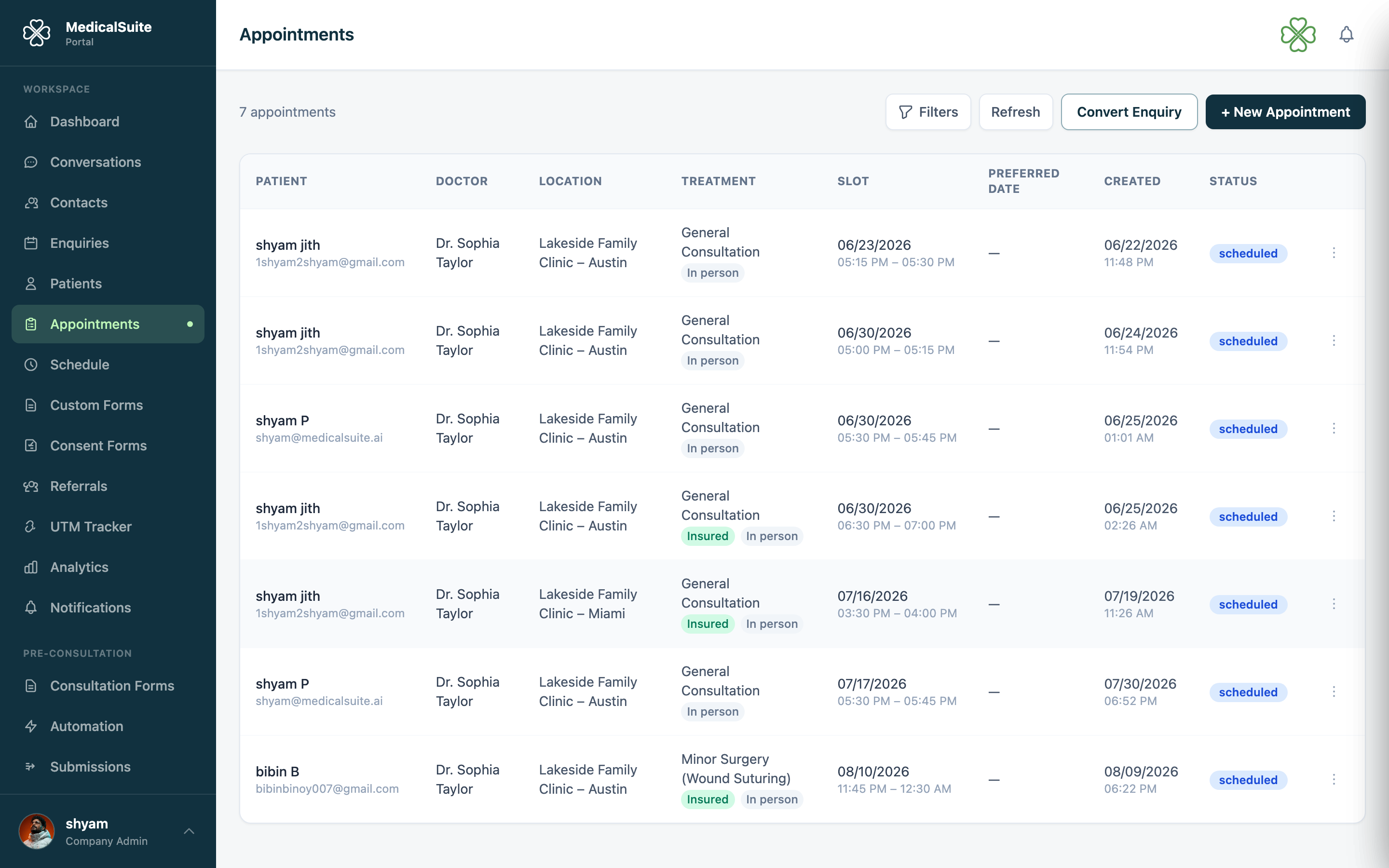
Reading the calendar
- Switch between day, week, and month views with the buttons at the top. Front desk usually lives in day/week view.
- Filter by doctor to see just one doctor's day — useful when a patient asks "when can Dr. Sharma see me?"
- Each block is one appointment, showing the patient and treatment. The colour/label tells you its status.
Opening an appointment
Click any appointment to open Appointment Details. From there you can:
- see the patient's contact details and notes,
- change the status (see below),
- Reschedule or Cancel (how),
- for online appointments: copy or resend the video link.
Appointment statuses — keep them updated!
As the day runs, update each appointment's status. It takes one click and it's what makes your dashboard numbers true:
| Status | When to set it |
|---|---|
| Booked | The default after booking |
| Completed | The patient came and was seen |
| Cancelled | The visit was called off (patient is notified) |
| No-show | The patient simply didn't turn up |
The dashboard's Completion Rate and No-show Rate are calculated from these — if statuses aren't updated, those numbers mean nothing.
Common questions
I can't see any appointments. Check the doctor filter and the date — you may be filtered to one doctor or looking at the wrong week.
Two patients at the same time for one doctor? The system won't offer a slot that's taken. If you see an overlap, one of them was likely booked as a different treatment length — open both and check.