Editing your email wording (admins)
Every email your clinic sends — appointment confirmations, reminders, pre-consultation invites, consent requests — starts with our standard wording. You can rewrite that wording in your own voice, and see exactly how it will look before you save.
Your logo, colours and contact details are not part of this page. Those come from Settings and are added to every email automatically, so you never have to paste them in.
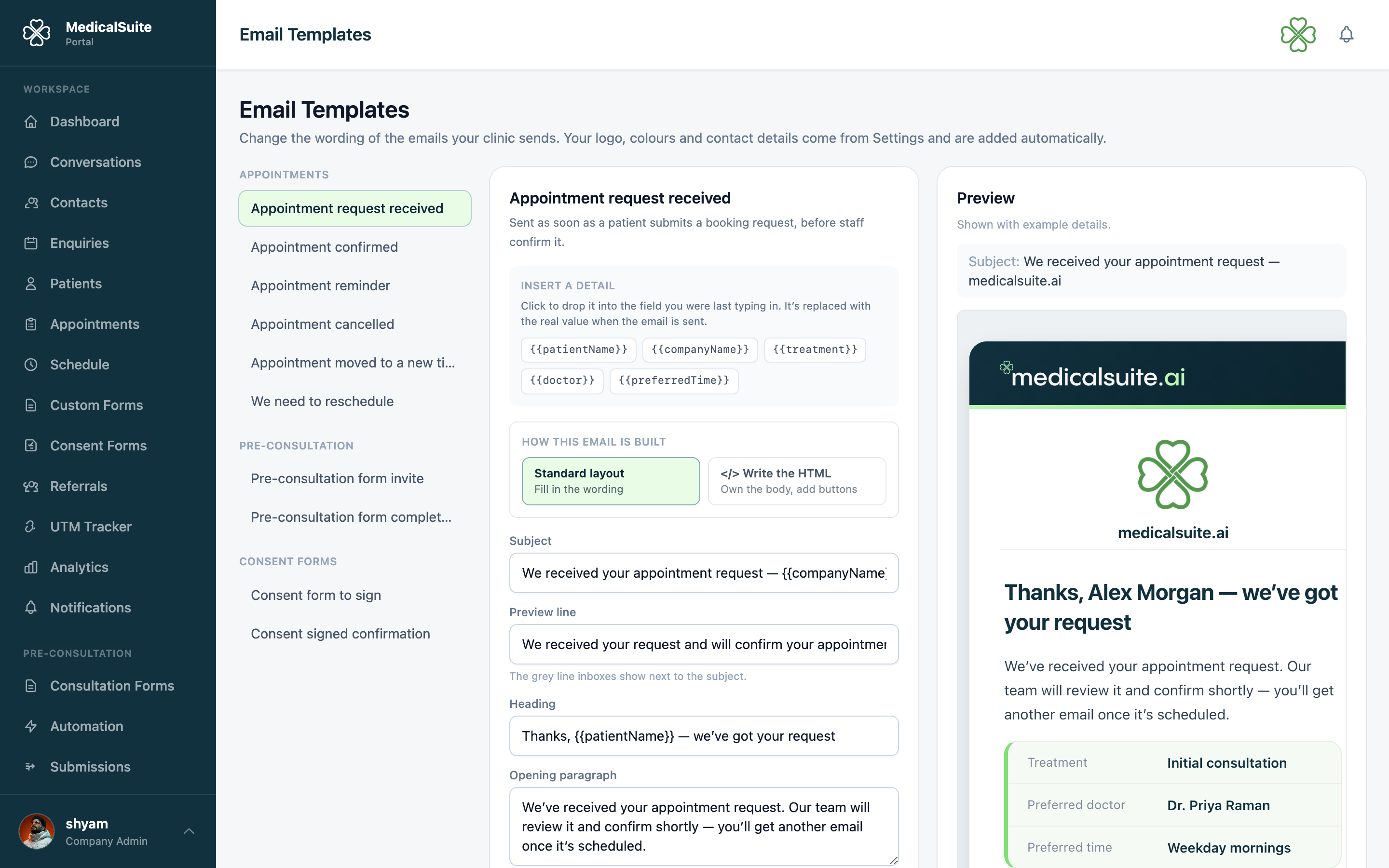
Changing an email
- Open Administration → Email Templates.
- Pick an email from the list on the left. They're grouped into Appointments, Pre-consultation and Consent forms.
- Edit the fields in the middle. Every email has:
- Subject — what shows in the patient's inbox.
- Preview line — the grey line inboxes show next to the subject.
- Heading — the large line at the top of the email.
- Opening and closing paragraphs — your message.
- Some emails also have a button label or a note that only appears for online video consultations.
- Watch the Preview on the right — it updates as you type, using example patient details.
- Click Save. New emails go out with your wording; emails already sent aren't affected.
Dropping in patient details
You don't type the patient's name — you drop in a detail and the real value is filled in when the email is sent.
Click any chip under Insert a detail (for example {{patientName}} or {{when}}) and it lands in the field you were last typing in. Each email offers only the details that make sense for it.
If a detail has no value for a particular patient — no doctor assigned, say — it simply disappears from the email rather than leaving a gap.
Making words bold
Wrap a word in double asterisks: **important** comes out as important.
Writing the HTML yourself
If the standard layout isn't enough — you want an extra button, a two-column block, your own spacing — switch the email to Write the HTML.
- Click Write the HTML above the fields.
- The editor opens already holding the standard design as HTML — the same paragraphs, details card and button you saw a moment ago. Nothing about the email changes until you edit it.
- Edit it: add a button, move a block, change the spacing. The preview updates as you type.
- Changed your mind mid-edit? Start again from the standard design puts the original markup back.
What stays yours and what stays ours:
- You write the middle of the email — everything between the heading and the footer.
- We still add the header bar, your logo, the heading, your contact details and the footer. So an email can't come out unbranded.
- Subject, preview line and heading are still edited in the fields above — they sit outside the body.
Notes for HTML that works in real inboxes:
- Use inline styles (
style="…") and tables for layout. Email apps like Outlook ignore stylesheets and modern CSS. - Placeholder chips work here too — click one to drop it into your HTML.
{{actionUrl}}is the link the email is about (sign the form, join the video call, open the portal), so you can wrap it in your own button. - Anything unsafe — scripts, click handlers, tracking iframes — is removed automatically before the email is sent.
- Keep
{{actionUrl}}as the button's link. The preview fills it with a stand-in address (example.com) so you can see the layout — if that address ends up saved in your HTML, every patient who clicks the button lands on a dead page. Saving is blocked if it's still there, and the message tells you which link to use. - To go back, click Standard layout; your wording is still there. Reset to standard clears the HTML too.
Going back to the standard wording
- One line: clear the field and save — that line goes back to standard.
- The whole email: click Reset to standard.
Emails you've changed show an Edited tag in the list, so you can see at a glance which ones differ from the standard.
Common questions
Do my changes affect other clinics? No. Wording is per clinic — yours only.
Can I change the layout, colours or logo? The body layout, yes — switch the email to Write the HTML (see above). The header, footer, logo and contact details always come from Settings, so every email stays branded and arrives looking right in older email apps like Outlook.
Which emails can I edit? Appointments (request received, confirmed, reminder, cancelled, moved to a new time, needs rescheduling), pre-consultation (form invite, form completed), and consent forms (form to sign, signed confirmation). More are being added.
Someone edited an email and it reads badly — can I undo it? Click Reset to standard on that email to bring back the original wording.