Building a pre-consultation form
What it is: a short questionnaire you send a patient before their visit, so the doctor already knows the basics — symptoms, history, current medication — when the patient walks in (or joins a video consult). Build the questions once; the same form can then be sent automatically or by hand.
Creating a form
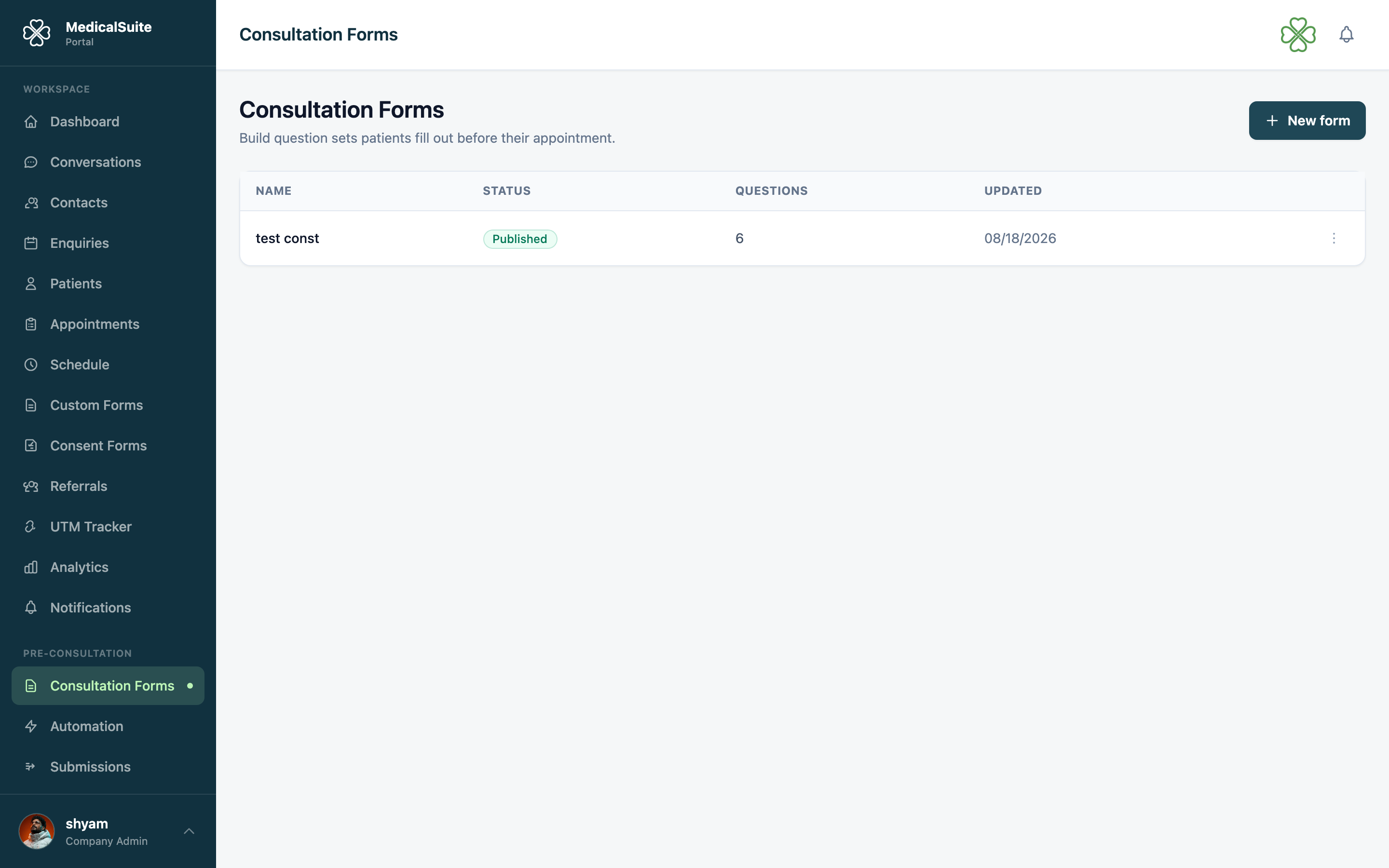
- Open Pre-consultation → Consultation Forms.
- Click New form and give it a name (e.g. "New patient intake" or "Pre-op questions").
- You land in the form builder.
Adding questions
Use Add to form to drop in a question. Available types:
- Short answer and paragraph — free text.
- Email and Phone — short answers that only accept a properly formatted email address or phone number. Phone questions show the same country-code picker used elsewhere in the portal, so the number is stored with its dialling code. The patient's keyboard and saved contact details adapt to the field, and they're told to fix it before they can submit if what they typed isn't valid.
- Multiple choice, checkboxes, and yes/no.
- Date and number.
- Rating scale.
- File upload — the patient attaches a document or photo (see below).
- Signature — the patient signs on screen.
- Heading, paragraph text, and custom content — for instructions or section titles, not questions.
Click a question to open its settings on the right: edit the label, mark it required, and (for choice/yes-no questions) edit the answer options.
For dropdown, multiple-choice and checkbox questions, type the answer choices in the Options box — one per line, pressing Enter between them. Blank lines are tidied up automatically when you click away.
Reorder questions with the up/down arrows, duplicate one you want to reuse, or remove it.
Asking the patient for a document
Add a File upload question when you need something from the patient before the visit — a referral letter, a recent scan, a photo of a rash, an insurance card.
The patient taps Attach a file and picks it from their phone or computer. It uploads straight away, and they can replace it before submitting. They can attach one file per question, so add a separate question for each document you need.
Accepted: PDF, Word documents, and JPG/PNG photos, up to 25 MB each.
Mark the question required if the patient shouldn't be able to submit without it.
Attached files are stored privately with the submission — see Reviewing patient answers for how to open them.
Showing a question only when an earlier answer matches
Some questions only make sense after a particular answer — e.g. "Which medication?" only if "Are you currently on medication?" was answered Yes.
- Select the question that should be conditional.
- Open its conditional logic setting.
- Choose the earlier question to watch, and the answer that should reveal this one.
The question stays hidden from the patient until that condition is met. Use the live preview on the builder page to answer the questions yourself and check that questions appear and disappear as expected.
Adding your branding
Optionally add your clinic's logo and colors to the form under its branding settings — this is what appears on the form itself and on the PDF generated once a patient submits it.
Publishing
A form starts as a draft — you can keep editing it freely. When it's ready:
Click Save & Publish.
A form must be published before it can be sent. Only published forms show up when you set up automatic sending or send a form by hand. If you can't find a form in that list, go back and publish it first.
You can keep editing a published form's questions afterwards; save your changes as usual.
Common questions
Pre-consultation missing from the menu? It's switched on per clinic — ask your administrator.