Logging in
What you need
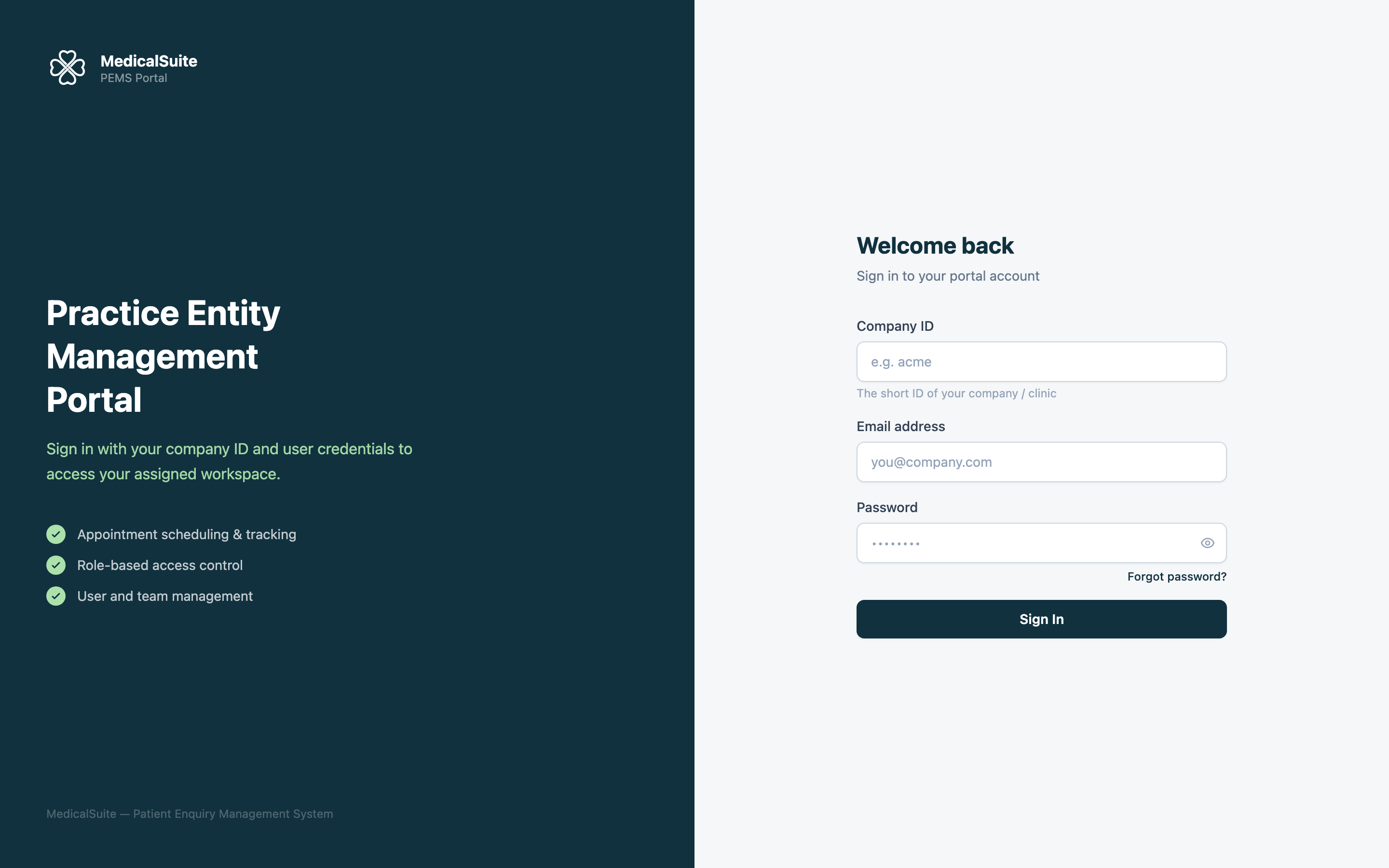
Your clinic administrator creates your account. To log in you need three things:
- Company ID — a short code for your clinic (for example
sunrise-clinic). Everyone in your clinic uses the same one. If you don't know it, ask your administrator. - Email — the email address your account was created with.
- Password — the one you set from your invitation email.
Steps
- Open the portal in any web browser (Chrome, Safari, Edge — all work): pems.medicalsuite.ai/login. Save it as a bookmark — you'll use it every day.
- Type your Company ID in the first box.
- Type your email and password.
- Click Sign in.
You'll land on your Dashboard (doctors land on their own calendar instead).
First time logging in?
You should have received an invitation email when your account was created. Open it and follow the link to set your password, then log in as above. Can't find it? Check your spam folder, or ask your administrator to resend it.
Forgot your password?
- On the login page, click Forgot password.
- Enter your email — you'll receive a reset link.
- Follow the link and choose a new password.
No email after a few minutes? Check spam. Still nothing? Your administrator can reset your password from the Users page.
Common questions
Can I log in from home / my phone? Yes — it works in any browser on any device, as long as you have the portal link and your login details.
It says my details are wrong, but I'm sure they're right. Most often the Company ID is the problem — it must match exactly (lowercase, no spaces). Double-check it with a colleague or your administrator.
Why do the appointment times look wrong? Your display timezone may be set differently from your clinic. Go to Settings → My Timezone and choose your local timezone — all times will then show in your zone.