Reviewing patient answers
Wherever a pre-consultation form was sent, you'll find the same Pre-consultation forms panel showing every form sent, its status, and what the patient answered.
Where it shows up
- On the enquiry — open the enquiry, and switch to the Pre-consultation tab.
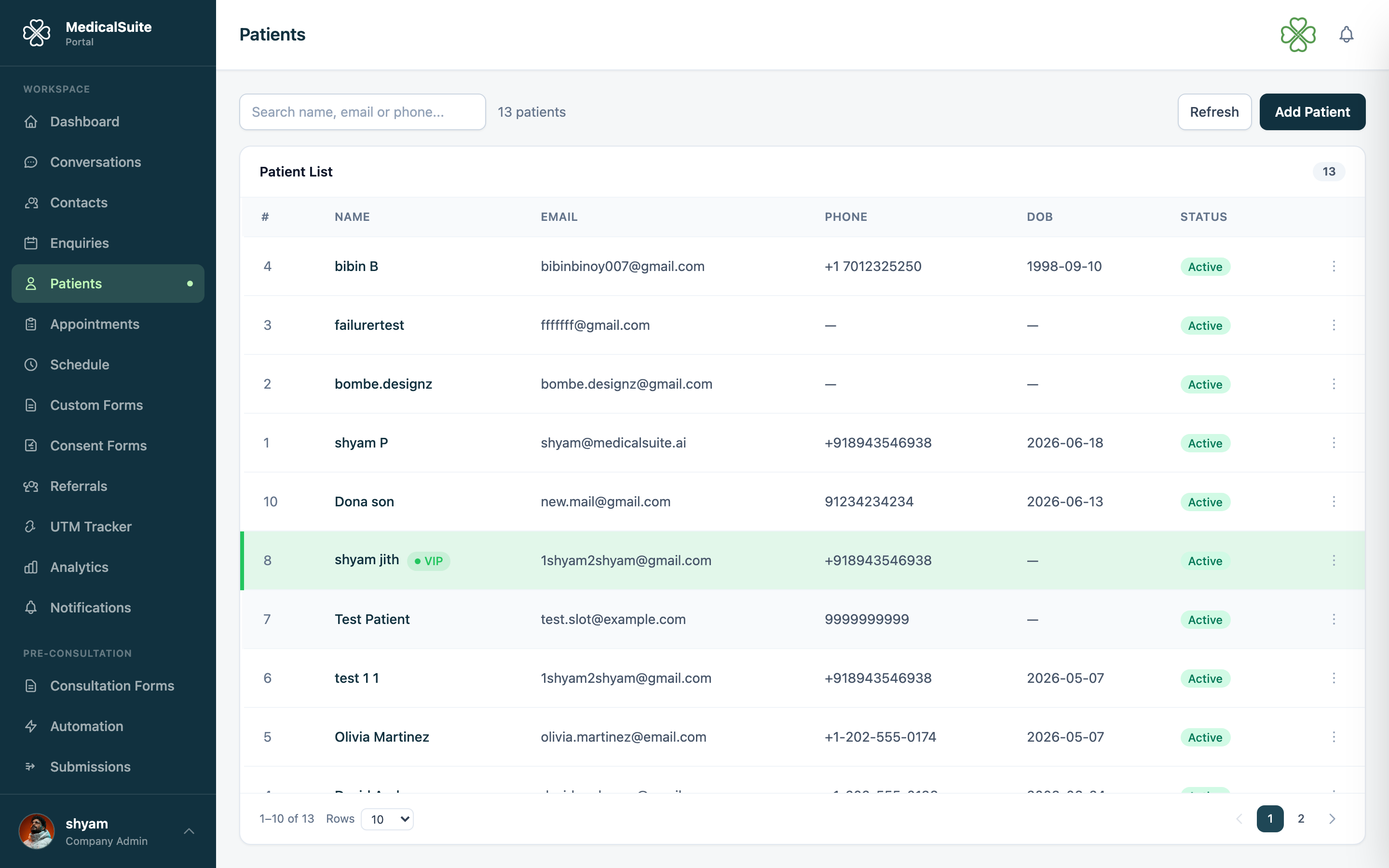
- On the patient's profile — open the patient, and switch to the Pre-consultation tab.
- On the appointment — open the appointment, and look for the Pre-consultation forms section.
Each shows the same list: form name, when it was sent, and its status — pending, completed, expired, or voided.
If a form was sent while someone was still just an enquiry (a lead, not yet a patient), and they later convert into a patient, the completed form stays attached. You'll find the exact same request on their patient profile and on the resulting appointment — nothing is lost or needs re-sending just because the enquiry turned into a booking.
Reading the answers
Click View answers on a completed form to open it in a read-only view. Answers are never shown inline in the list — you have to open them deliberately, so a shared screen doesn't accidentally reveal a patient's answers at a glance.
Opening or saving a file the patient attached
If the form had a File upload question, the answers view shows the attachment with its file name, and two ways to get at it:
- Click the file name to open it in a new tab — quickest way to glance at a scan or a photo.
- Click the ⬇ button next to it to save the file to your computer, under the name the patient gave it.
Use the download button when you need the file itself — to attach it to an email, or to file it somewhere else. Opening a photo or a PDF in a tab only displays it; it doesn't save a copy.
Each click creates a fresh, time-limited link, so don't bookmark or forward the address it opens — come back to the answers view and click again instead.
Downloading the PDF
Once a form is completed, click Download PDF to get a branded PDF copy of the questions and answers — handy for printing or attaching to other records. If a PDF isn't available yet, use Regenerate PDF to create one.
Sending a form by hand
Click Send form at the top of the panel, pick a published form, and it's sent immediately — useful for a one-off case that none of your automation rules cover.
Re-sending or copying the link
While a request is still pending (not yet filled in):
- Resend emails the patient the same invite again — for when they say it never arrived or they've lost it. The link stays the same, so anything they already started is unaffected.
- Copy link copies the patient's fill-in link, so you can send it yourself by text, WhatsApp, or however you reach that patient.
- Void cancels the request if it was sent by mistake or is no longer needed. A voided request can't be filled in.
Once a request is completed, expired, or voided, these actions disappear — only View answers, Download PDF and Delete remain relevant.
Deleting a submission
Delete removes a pre-consultation record entirely: it disappears from the panel, from the Pre-consultation Submissions page and from the Enquiries page tabs, and its fill-in link stops working. You'll be asked to confirm first, and it can't be undone from the portal.
Use it for test entries, duplicates and forms sent to the wrong person. If you only want to stop someone filling a form in, use Void instead — that keeps the record visible, marked voided.
Delete needs the pre-consultation delete permission, so it won't appear for every role.
Common questions
A patient says the email never arrived. Click Resend on the pending request. If it still doesn't reach them, check the address on their record is right, then use Copy link and send it another way.
A patient says their link doesn't work anymore. It's likely past its expiry — send them the form again with Send form. Resend won't help there: an expired link can't be revived, and the portal will tell you so.
Can a doctor see and open these, or only staff? Doctors can view and download completed forms. Sending a new form, voiding one or deleting one is a staff/admin action.
I deleted the wrong submission. It can't be restored from the portal. Send the patient a fresh form with Send form.
Pre-consultation missing from the menu? It's switched on per clinic — ask your administrator.