WhatsApp, Facebook & Instagram
What it is: connect the accounts patients already message you on. Their WhatsApp messages, Facebook Messenger chats and Instagram DMs all land in Conversations, next to your texts and calls, and your team replies from the same place.
You need to be an admin, and you need to be an admin of your clinic's Facebook Page.
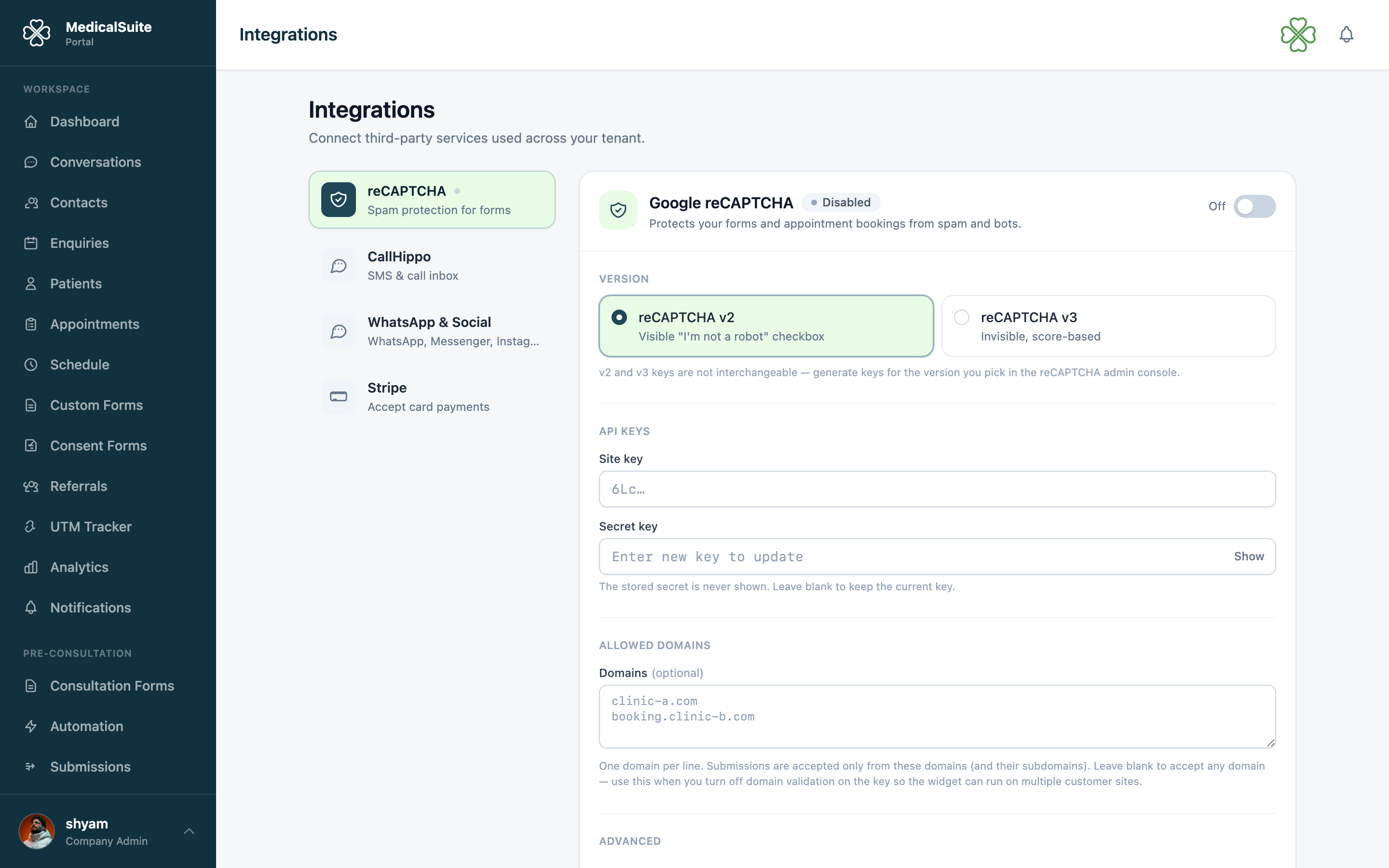
Connecting your accounts
- Go to Settings → Integrations and open the WhatsApp & Social tab.
- Click Connect with Facebook.
- Sign in to Facebook and choose the Page your clinic uses.
- If your Instagram account is linked to that Page, it connects at the same time — nothing extra to do.
- If your clinic has a WhatsApp Business number, tick it in the list.
- Finish, and you come back to Integrations with each connected account listed.
What happens next
New messages appear in Conversations straight away. Every conversation shows a badge for where it came from, so you always know whether you are replying on WhatsApp, Messenger or Instagram — the reply goes back the same way.
Disconnecting
Click Disconnect next to an account. New messages from that account stop arriving. Past conversations stay in your inbox.
If messages stop arriving
Usually someone changed the Facebook password, or removed the app's access. Open Settings → Integrations → WhatsApp & Social and click Connect with Facebook again. Reconnecting takes a few seconds and nothing is lost.