Extra Hours — one-off availability
The situation: Dr. Patel normally works Mon–Fri, but agrees to open this Saturday for a catch-up clinic. You don't want to change her weekly schedule — it's a one-time thing.
The answer: add Extra Hours — a bookable window for one specific date, on top of the normal week.
Steps
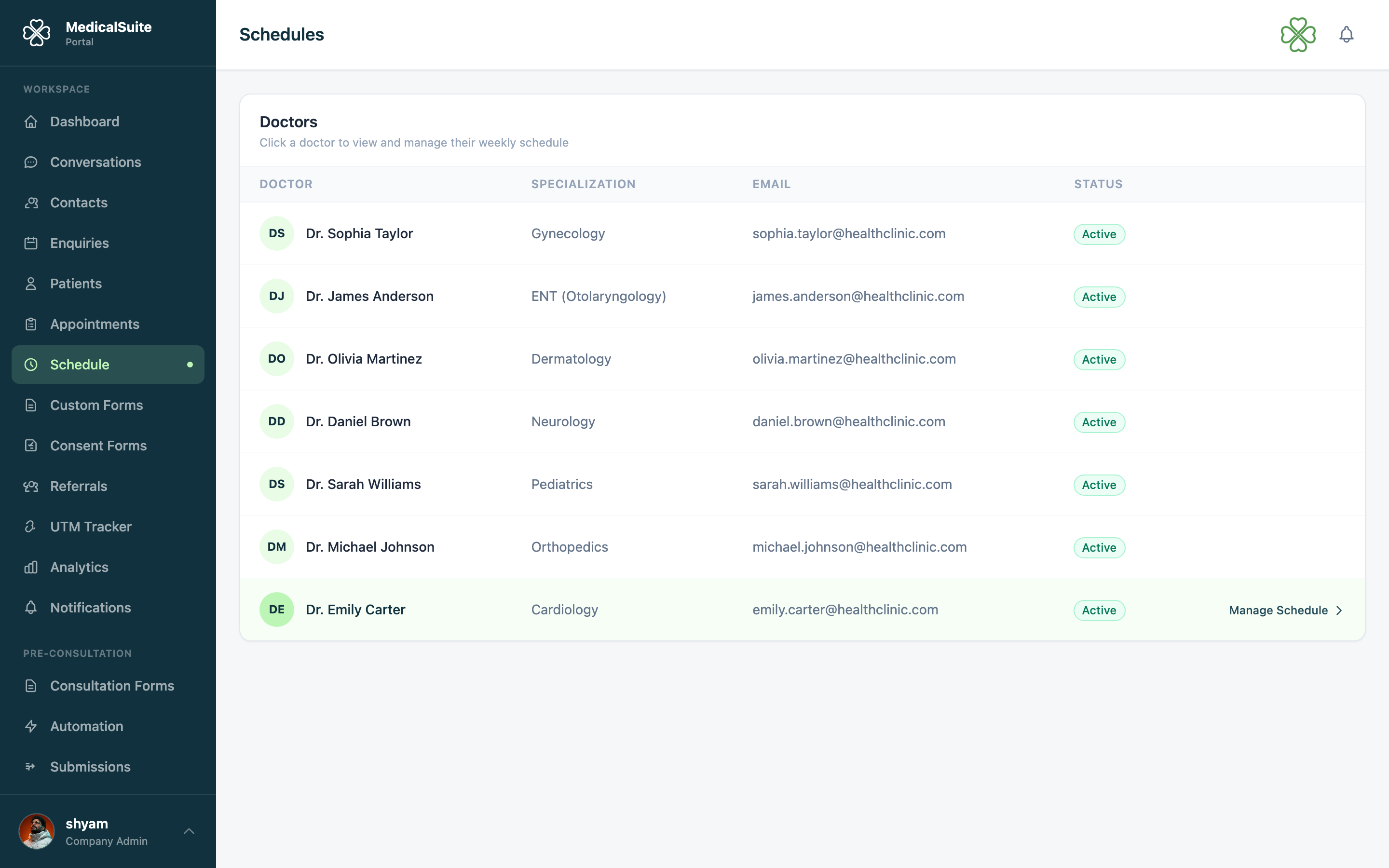
- Open Schedule from the left menu (doctors: My Schedule in their own portal).
- Pick the doctor (if you manage several).
- Find the Extra Hours section and click Add.
- Choose the date, start time, and end time — e.g. Saturday 09:00–13:00.
- Save.
That's it. Slots inside that window instantly become bookable — by staff, and through your website's booking widget too.
The rules, in plain words
- Extra Hours add availability. They never remove or replace the weekly schedule.
- They apply to one date only — next Saturday isn't affected.
- Booked slots inside Extra Hours behave like any other booking: confirmations, reminders, video links all work the same.
"I want the opposite — to block time OFF"
Extra Hours can't do that. To make a doctor unavailable:
- Best way: the doctor puts a busy event in their connected Google Calendar ("Holiday", "Conference") — those times are automatically removed from booking. See Google Calendar.
- Or an admin adjusts the weekly schedule if the change is permanent.
Common questions
I added Extra Hours but no slots show when booking. Check the date and the doctor. Also: if the doctor's Google Calendar has a busy event over that window, it blocks those slots — that's by design.
Can a doctor add their own Extra Hours? Yes — from My Schedule in the Doctor Portal.